Creating Pdf Doc Dataset
Rubiscape supports pdf files (.pdf) for dataset creation.
To create an pdf dataset using any of the modes, follow the basic steps given below.
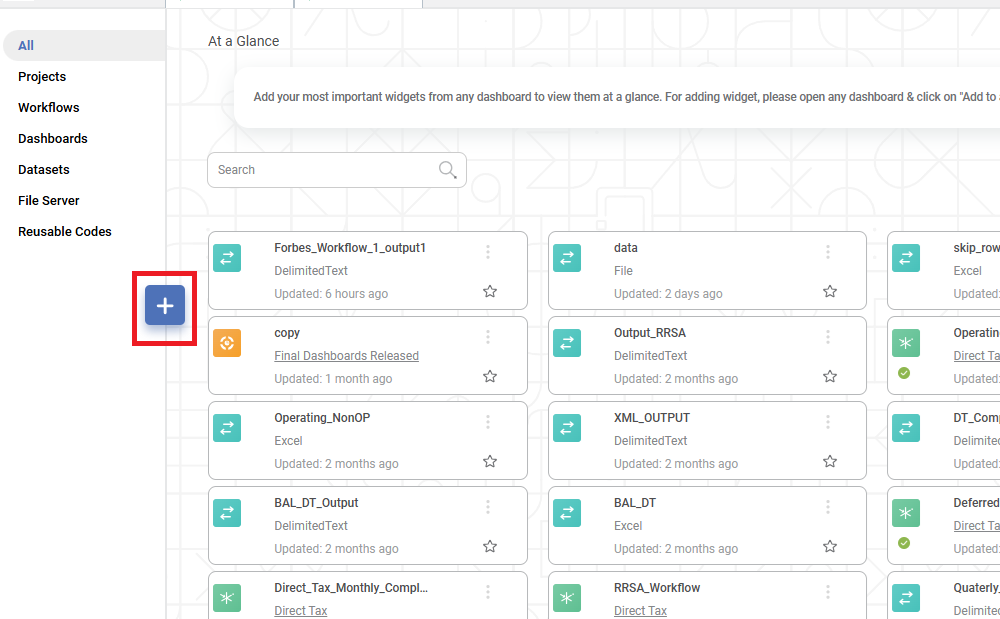
- On the home page, click Create icon .
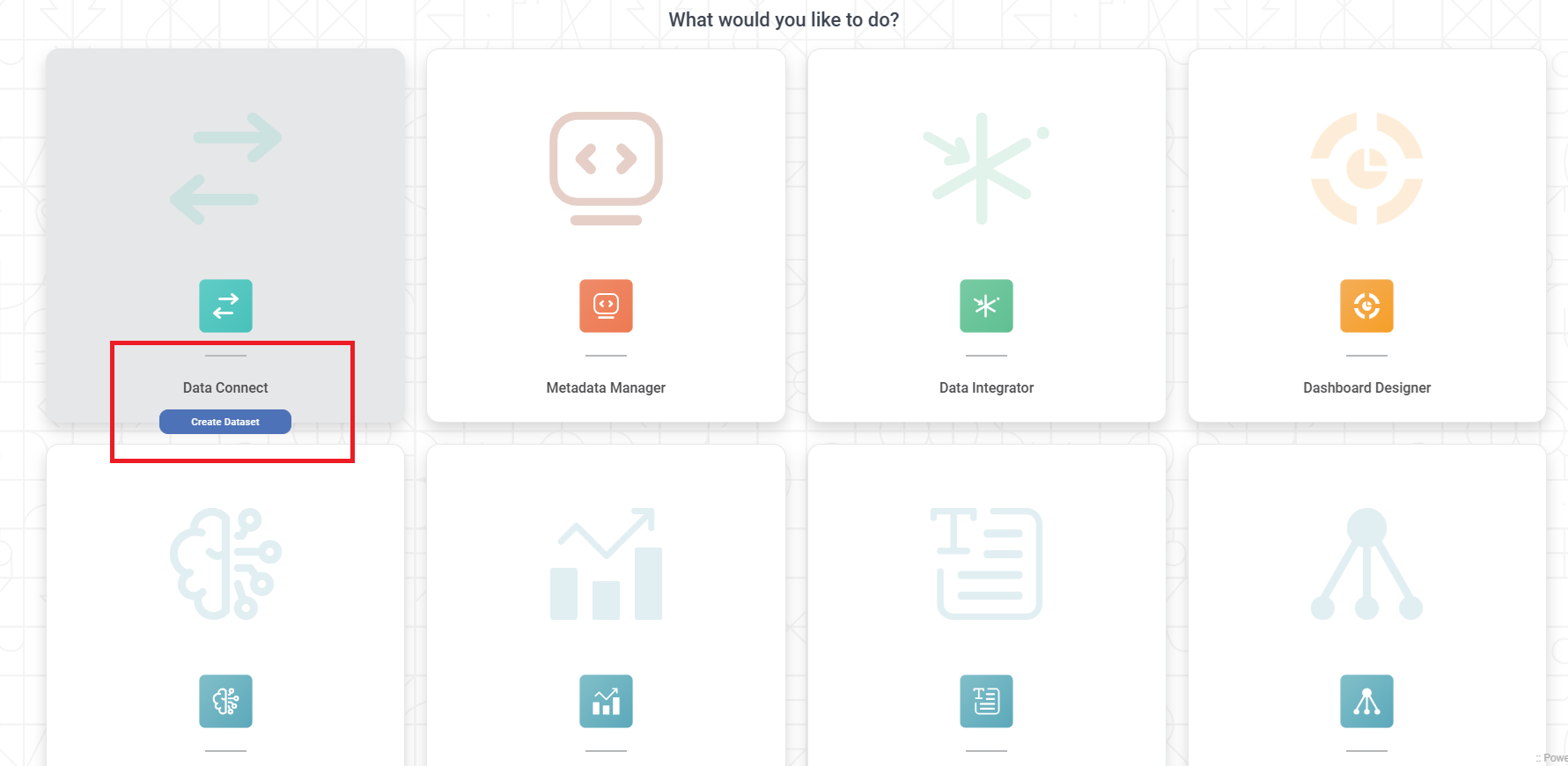
The Product Selection page is displayed. - Hover over the Data Connect tile and click Create Dataset.
Dataset Selection page is displayed. - From the File option, Select Pdf Doc.

- Create Pdf Doc Dataset page is displayed. You can use an pdf file stored on your computer or from the AWS S3 storage network to create an pdf dataset. The dataset creation for these types is explained in the sections below.
Creating Pdf Dataset by Uploading Pdf File
To create an pdf dataset by uploading an pdf file from your computer, follow the steps given below.
- Follow steps 1 to 3 as above.
- Enter Name and Description for your dataset.
- To upload an pdf file from your computer, select the Upload File in Source of Data dropdown .
- Click Browse.
The File Browser window is displayed. - Browse to your file location and select an pdf file.
- Preview of the file will be displayed on the right side

Click Create.
A confirmation message is displayed. The dataset is created successfully.
Creating Pdf Dataset using S3 Bucket Storage
To create an dataset by uploading an pdf file from the AWS S3 bucket storage, follow the steps given below.
- Follow steps 1 to 3 of above.
- Enter Name and Description for your dataset.
- To upload a file from AWS storage, select the S3 option from 'Source of Data' dropdown .
A new set of dataset creation options are displayed. Enter the following details for the cloud storage.
- Bucket Name
- Aws Access Key Id
- Aws Secret Access Key
- File Directory URL (for the folder created by you on the S3 browser)
- Filename or Wildcard
Notes: | - The administrator provides Aws Access Key Id and Aws Secret Access Key.
- If a file is already present in the root directory, you can access the file from the folder using a slash (/) symbol.
- If a folder is already present, you can give its path in the File Directory URL field.
- The File Directory URL is for the folder created by you on the S3 browser. This folder contains the dataset files whose Filename/Wildcard is mentioned in the next field.
- You can use special characters/symbols to search file names like an asterisk (*) and question mark (?).
- An asterisk (*) symbol searches file names with multiple (any number) characters in the specified place.
- For example, a filename with Data_*_* searches all file names containing multiple characters between the underscore marks and after the last underscore mark.
- A question mark (?) is used to search file names with a single character in the specified place.
- For example, a filename with Data_? _??? searches all file names containing one character between the underscore marks and three characters after the last underscore mark.
- Hence, a filename with Data_??_* searches all file names containing two characters between the underscore marks and multiple characters after the last underscore mark.
- You can search for the dataset files in all folders and sub-folders of the root directory by selecting the Traverse Subdirectory checkbox.
|
To continue the Pdf Dataset creation process,
- To validate the connection parameters, click Verify.
If the parameters are valid, a Verification Success message is displayed. Also, the Show Filename(s) button gets activated. - To see the files detected, click Show Filename(s).
- The list of detected files is displayed in a separate window.
- Enter the details from there.
Click Create.
The Pdf dataset is created in the current workspace and is available for use in workbooks, pipelines.
Related Articles
Export to PDF/PPT using Dashboard Schedule
In RubiSight, you can export a dashboard using the Export functionality. Refer to Exporting a Dashboard. You can not only schedule this export, but also send the dashboard pages as PDF via email, at a stipulated date and time. Notes: You can schedule ...
Generate Smart Insights with Text/Image Processing
Smart Data Insights - Dashboard Data vs External Text/Image: RubiAI allows you to generate Smart Insights wrt dashboard data and the uploaded Text/Image file. You can attach any file in the text formats- word, , csv, excel, pdf, text and image ...
Exporting a Dashboard
Exporting a dashboard helps you to store/save the dashboard on the system. You can then share or view the dashboard in PDF and PPT format. When you export a dashboard, all the pages present in the dashboard are exported. To export a dashboard, follow ...
Canvas Grid Functionality
Grid support helps designers align and organize visuals precisely on the canvas using an underlying layout structure. Overview Grid is available for Rubisight Designers The grid is visible only in Edit Mode It helps in maintaining consistent spacing ...
Advance Course in AI_ML-Application form filling Guide
Course Application Help Guide Please follow the process below mentioned, for course application. 1. Register yourself on [ https://campus.unipune.ac.in/ccep/login.aspx ] 2. Select your Nationality and fill in Email id 3. Verify your email address 4. ...