MongoDB
Creating MongoDB Dataset
To create a MongoDB dataset, follow the steps given below.
- On the home page, click the Create icon (
 ). The Product Selection page is displayed.
 - Hover over the Data Connect tile and click Create Dataset.
The following figure shows the Product Selection page.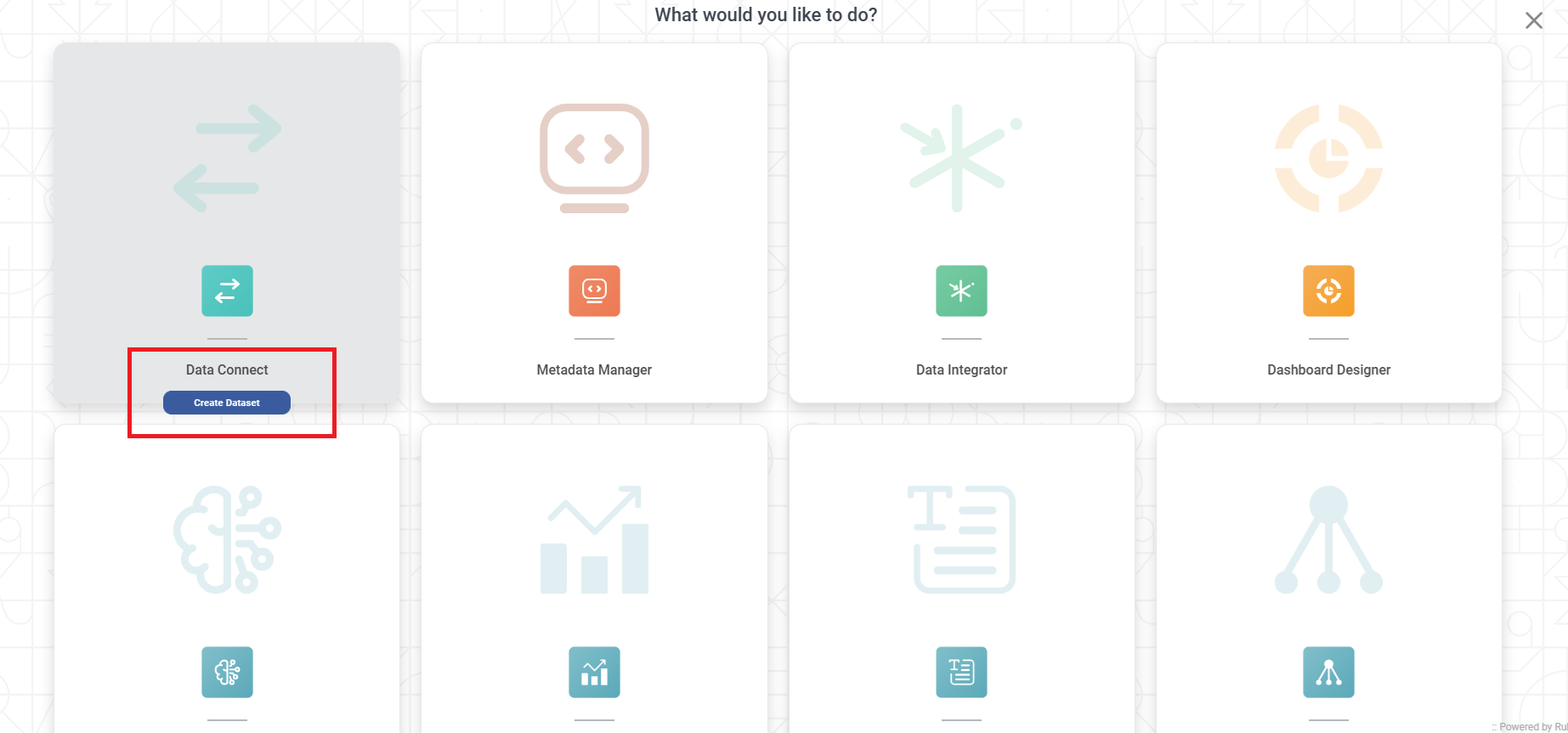
- The Connect page for choosing your dataset type is displayed.
From the NoSQL options, select MongoDB.
The following figure shows NoSQL options.
The Create MongoDB Dataset page is displayed. - Enter a suitable Name for the Dataset.
- In the Connection Parameter section, there is a type dropdown having two options: standard, clustered
1. After selecting standard option configure as following:
-- Host (IP address of the server where your database resides)
-- Port (for the localhost on which the SQL database service is available)
-- Username (of the account authorized to access the database)
-- Password (for the account)
-- Database (Name to access Collections)
-- Authentication Database (Name to access Collections)
2. After selecting standard option configure as following:
-- Host (IP address of the server where your database resides)
-- Username (of the account authorized to access the database)
-- Password (for the account)
-- Database (Name to access Collections)
-- Authentication Database (Name to access Collections) - If the collection contains JSON data files that contain multiple data blocks of different sizes, enable the ‘Max Level’ checkbox and enter the number of levels you want to expand to view nested data.
- Click Test Connection. The message "Database Connection Successful" is displayed in green if the parameters are accurate. After a successful connection, the collections dropdown is populated with a list of available collections.
- From the Select Collections dropdown, select the required collection(s) and click Done.
- To add a custom query to select data from the collections, click Add Custom Query. Add Custom Query screen is displayed. Refer to Adding A Custom Query for details.
- Click Create. The MongoDB dataset is created in Rubiscape and is available for use in your workbooks and pipelines.
Notes: |
|