Batch Processing
- Pipeline allows you to divide the dataset/Tasks into batches and then process it.
- Batch processing is mainly used to simplify many ETL operations like Missing value Imputation, expression, and validating data.
- You can specify the batch size called Chunk.
- Batch processing is used because it allows large volumes of data or tasks to be processed efficiently, automatically, and consistently—without requiring manual intervention for each record.
- This functionality is available in Pipelines.
Configuring Batch Processing
- Click on three dots (
 ) on the right-hand corner of the Workflow landing page. The batch processing option is displayed.
 - Click on batch processing option, and the following popup is displayed.
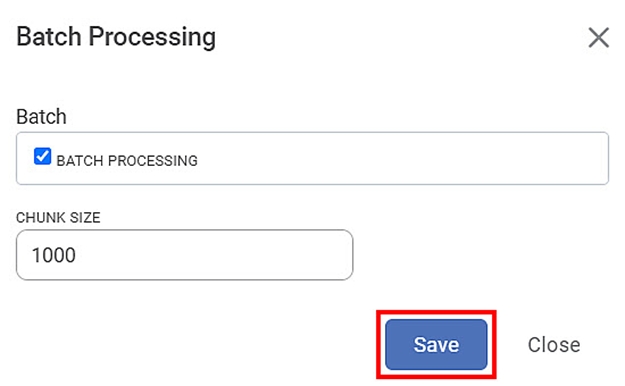
- The default chunk size is 1000. The batches are created depending on the chunk size.
- The data page will be displayed as follows
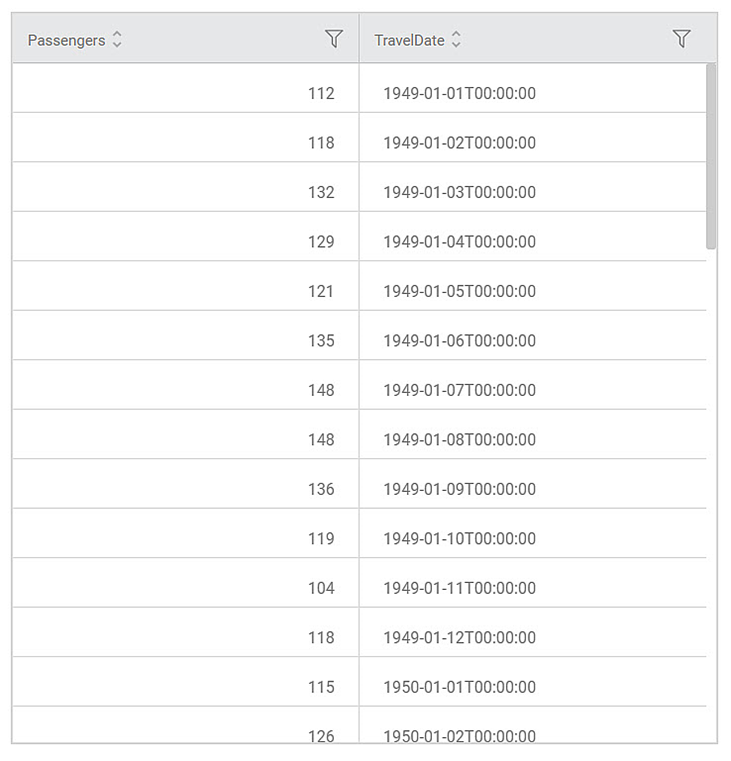
- The records are processed as per mentioned batch size. When you explore the output, you will see all the processed data together.
- The data is processed internally in the batches and hence is applicable for the tasks wherein batch operations can be handled.
- The tasks which are not supporting batch execution will still execute with the regular execution.
Advantages
- Processing becomes faster. It improves the speed of many ETL operations like Missing value Imputation, expression, Cleansing, and model testing.
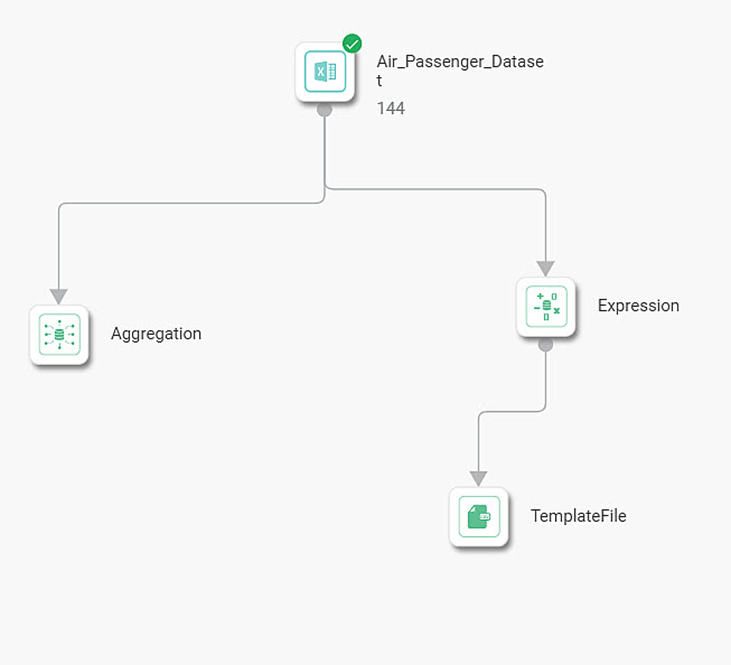
- The parallel processing becomes faster. Consider the following pipeline.
- Dataset reads the data from the file.
- You build an expression and save it in the output file in one process.
- In another process you build the Model.
- When you apply batch processing, both processes run concurrently.
- Following figure explains the parallel processing.
- You are allowed to explore the model when it is processing.
Limitations
- Apply Batch processing only on pipeline.
- Don’t apply Batch processing in the case of entire column operations like average, and totals.
- Batch processing is not allowed on the datasets generated using the following techniques
- SSAS RDBMS
- JSON file format
- Google news