Writing Data to the Template Table
- You can store the result of algorithm flow or the Reader to a dataset table.
Note:
You can write to an RDBMS or ODBC (SQL, MySQL, PostgreSQL, or Oracle) datasets only.
- To write the output data to a template table, follow the steps given below.
- Build your algorithm flow. Refer to Building Algorithm Flow in a Workflow Canvas.
- Run your algorithm flow. Refer to Running a Workflow.
- Use the drag-and-drop method to insert the TemplateTable node from the Task Pane into the canvas.
- Connect the source node (node whose data you want to write to a table) to the TemplateTable node.
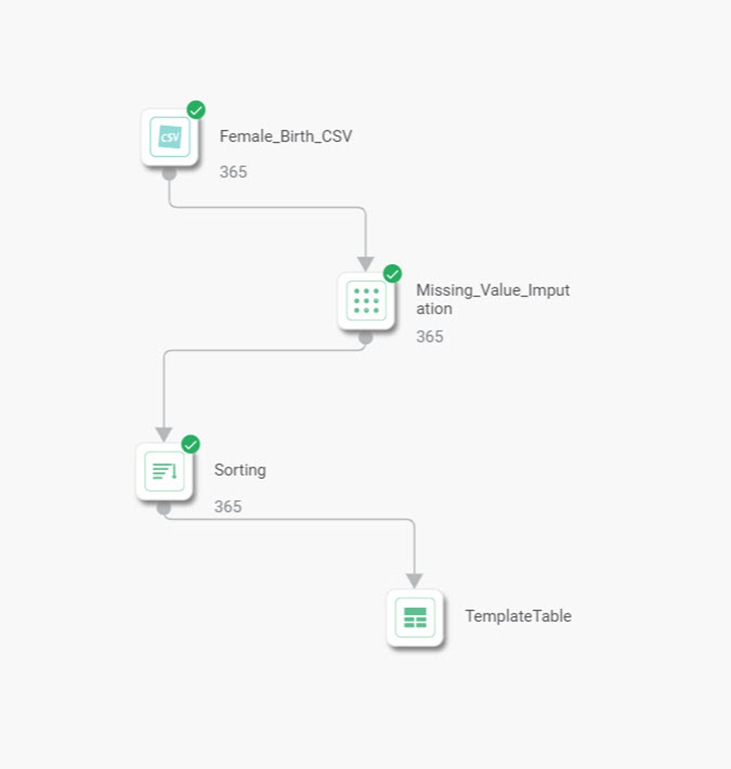
In the image above, the node Sorting is connected to the TemplateTable node. The result of Sorting will be written to TemplateTable.
From the Properties pane, select the configuration settings for the TemplateTable.
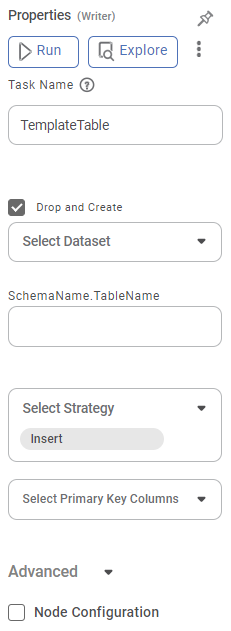
The table given below describes different fields present in the properties of TemplateFile.
Field
Description
Remark
Task Name
It displays the name of the selected task.
You can click the text field to edit or modify the name of the task as required.
Drop and Create
It allows you to determine whether to drop an existing table.
If selected, the existing table schema is dropped, and a new table schema is created.
Select Dataset
It allows you to select the dataset in which you want to create the table.
You can select RDBMS or ODBC datasets that are available at the Workspace level.
Table Name
It allows you to enter the name of the table you want to create.
If a table with the same name exists, then either data is added to it, or a new table is created.
Select Strategy
It allows you to select the operation you want to perform on the table.
The available options are –
- Insert – Insert data into the table.
- Update – Update existing data.
- Delete – Delete data from the table.
- Tag Driven – Performing either Insert, Update, or Delete
- For more info, Refer Updating Template Table Using WSTag
- Insert Else Update –
- If the record does not exist, the function inserts a new record with the specified data.
- If the record does exist, the function updates the existing record with the new data.
- Update Else Insert –
- If the record exists, the function updates the existing record.
Select Key Columns
It allows you to select the primary key of the table.
- It is applicable only to Update and Delete operations.
- It is NOT applicable to Insert operation.
- If you want to create a new table, select the Drop and Create checkbox, else clear it.
- From the Select Dataset drop-down, select the name of the dataset in which you want to create the table.
- Enter Table Name. If a table by this name exists in the dataset, then based on the option selected in step 6, either data is added to the existing table, or a new table is created.
- From the Select Strategy drop-down, select the operation you want to perform. The options are – Insert, Update, and Delete.
If you select Update or Delete option in step 9, select the primary key from the Select Key Columns drop-down.
Note:
- You can select more than one column if the combination of these columns forms a Primary Key at the table level.
- If you select Tag Driven Strategy, select the primary key from the Select Key Columns drop-down and select the tag column from Select Tag Column
To run the TemplateTable node, click the ellipsis on the TemplateTable node, and then click Run.
After a successful run, a table with Table Name is created (or updated, based on the operation selected by you) in the dataset specified by Dataset Name.Notes: - If you created a new table in the database, you need to edit the dataset and add the newly created table to it so that the newly created table is added to the dataset.
- Suppose you updated a table which was existing in the database but was not a part of the dataset. In that case, you need to add the edited table to the dataset so that the changes to the table are reflected in the dataset.
- If you updated a table already included in the dataset, then the changes made to the table are automatically reflected in the dataset.